Start with News Desk
A practical tour of the WNY Athletics staff desk and the checks that keep a newsroom shift organized.
- Open it at
- News Desk → Staff Desk
- Best first stop
- Home
- Your menu
- Changes with your staff role
What News Desk manages
News Desk is the working newsroom for WNY Athletics. Writers and producers create coverage, editors move it through review, coverage staff maintain scores and standings, and administrators manage people, desk voices, rates, and publishing rules.
The public website reads only published material. Drafts, notes, assignments, review comments, private feed credentials, and payroll records stay inside the protected staff tools.
Know the workspace
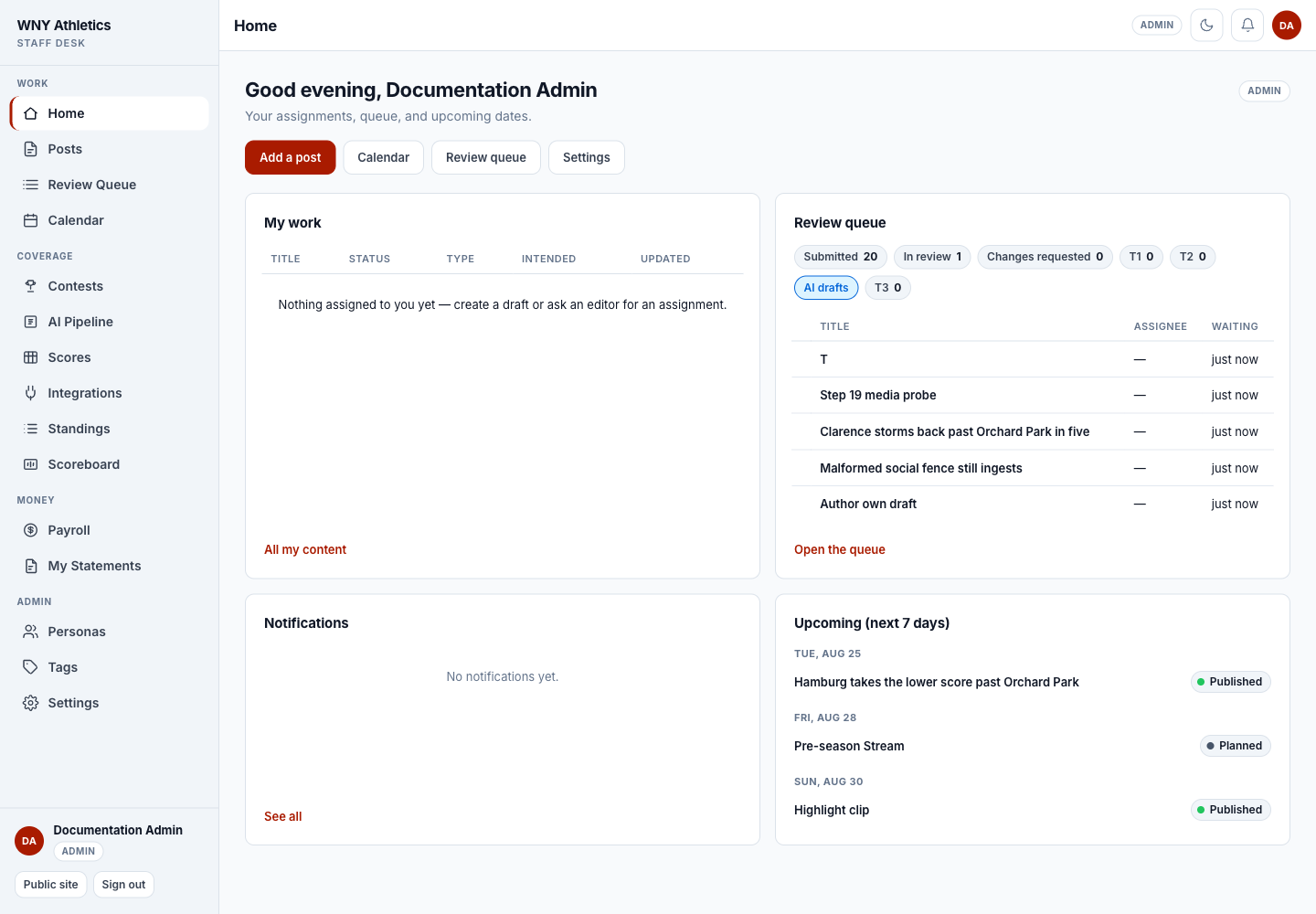
Home is a shift board, not just a welcome screen. It shows your work, the editor queue, notifications, and the next seven days. The left rail groups tools by the job they support: Work, Coverage, Money, Admin, and Help.
-
Role-aware navigation groups newsroom work by purpose.
-
Quick actions open a new post, the calendar, review queue, or settings.
-
Editors see the current review load and can open the queue.
-
Upcoming work is grouped by intended publish date.
Start-of-shift checklist
- Open Home and read any unread bell notifications.
- Scan My work for assignments, drafts, or requested changes with today’s date.
- If you are an editor, open Review Queue and check pinned and oldest-waiting items first.
- Open Calendar in Week view to see planned, assigned, and scheduled coverage together.
- If scores or standings are part of your shift, check the last-fetched times before refreshing anything.
- Keep the public site open in a second tab when publishing so you can verify the reader-facing result.
A newsroom rhythm that works
-
Plan the assignment
Create a planned item or draft, connect it to a contest when one exists, set the intended date, and assign the writer, photographer, producer, or desk persona.
-
Build the post
Write or paste the copy, add files and tags, prepare social suggestions, and save frequently. A saved draft is still private.
-
Send it to the desk
Use Submit for review when the post is ready for an editor. Requested changes return it to the assignee with a note.
-
Publish and verify
Editors approve, schedule, or publish. Open the public article, scoreboard, standings page, broadcast list, or podcast page and confirm the result before moving on.
-
Close the loop
Copy or post the social suggestions, record any manual score correction, and check payroll only after assignments and bylines are correct.
Notifications and themes
The bell in the top bar opens unread notifications. Selecting one marks it read and takes you to the related item. The full Notifications page can mark everything read and lets a staff member mute their own notifications.
The moon/sun button changes only the display theme. It does not affect public pages or anyone else’s account.
Frequently asked questions
Why do I see fewer menu items than another staff member?
The menu follows your staff role. Contributors and staff authors see their own work; editors add the desk and coverage tools; admins add people and settings.
Does saving a post put it on the website?
No. A draft remains private until an editor publishes it or a scheduled publish job runs at the approved time.
Where are notifications?
Use the bell in the top bar for unread items or open the Notifications page from the bell menu.
Which screen should stay open during a busy shift?
Home is best for an individual shift. Editors usually keep Review Queue or Calendar open beside the public site.