Write and edit a post
Create newsroom work, shape the copy, attach the right people and coverage labels, and send a clean draft to the desk.
- Create from
- Posts → Add a post
- Safe stopping point
- Saved Draft
- Ready for editor
- Submit for review
Find or create a post
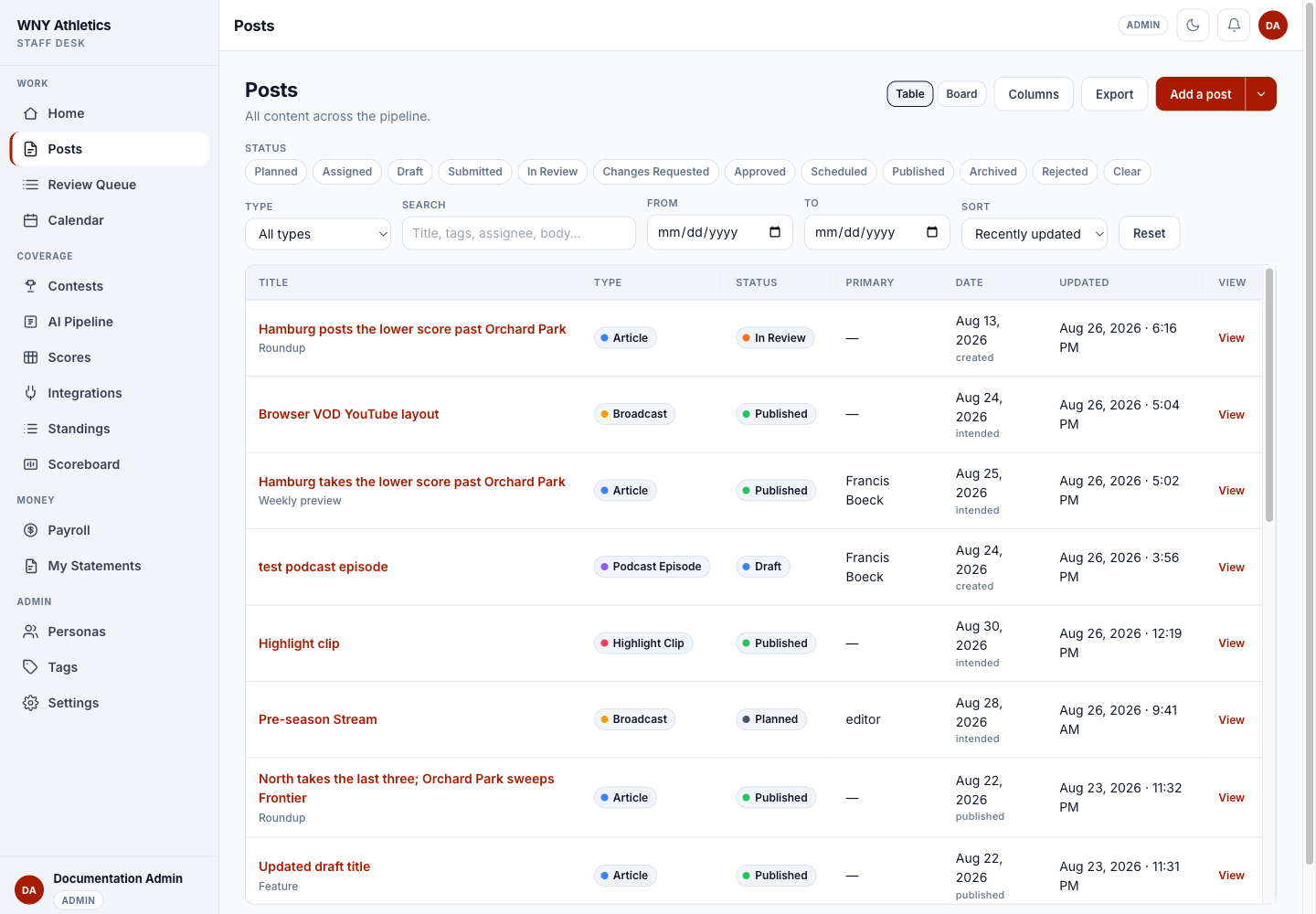
Posts is the desk’s complete content list. Editors see everything; contributors and staff authors see their own or assigned work. Status chips, dates, type, search, table/board view, and Customize layout (saved per view) help narrow a busy archive.
-
Search before creating
Search the team names, event, or likely headline so you do not start a second post for the same assignment.
-
Choose Add a post
Pick the post type, working title, genre when the type uses one, and intended publish date.
-
Link the contest when possible
A contest link lets Calendar and coverage-gap tools understand what game the post covers.
-
Choose Draft or Planned
Draft means writing starts now. Planned is for an editor creating an assignment that will be staffed later.
-
Add a post opens the basic creation form; the arrow chooses a type directly.
-
Status chips narrow the list to one stage of the desk.
-
Search, type, date, and sort filters can be combined.
-
Select a title or View to open the full editor.
Use the editor
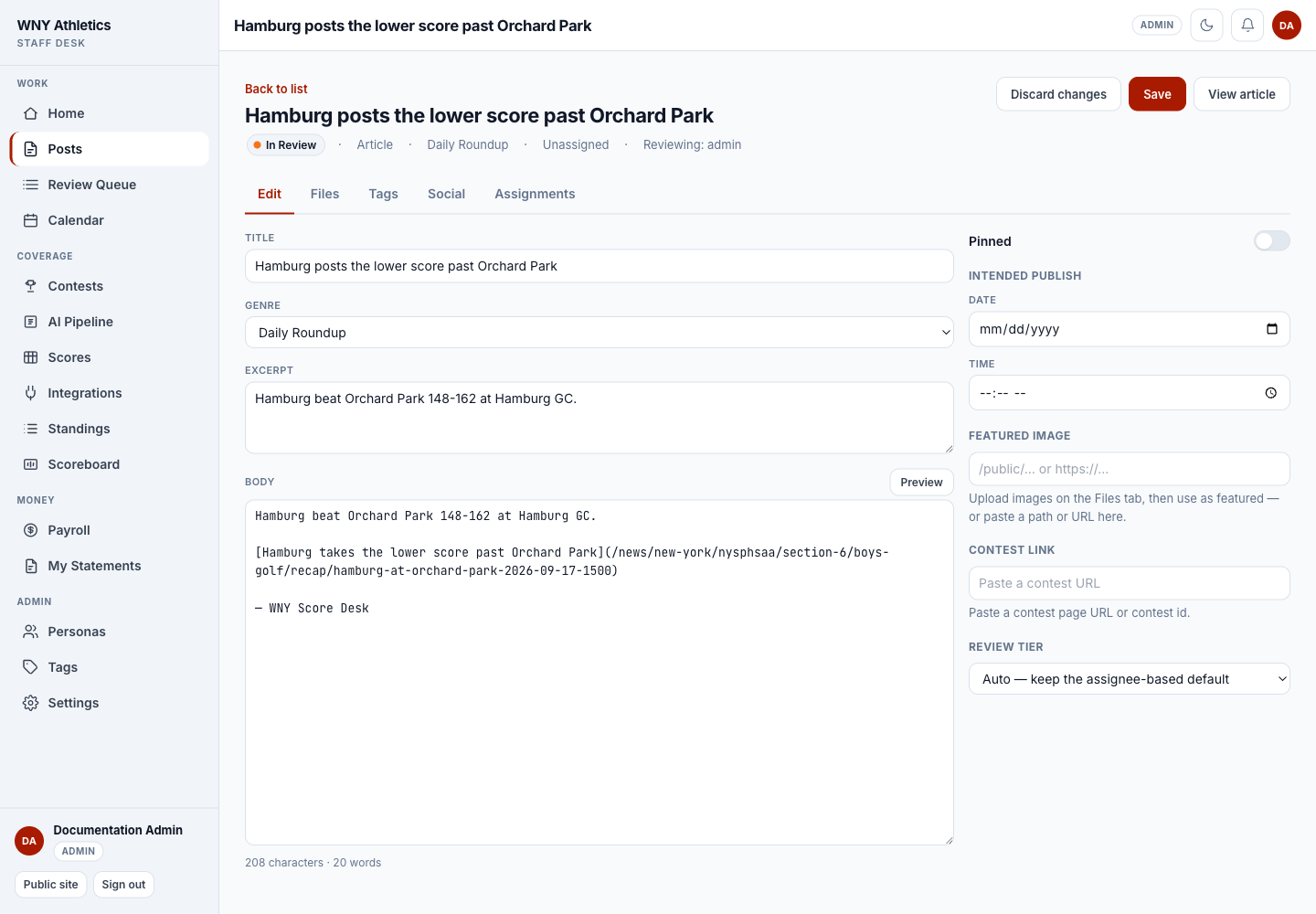
The editor changes its fields to match the post type. An Article has headline, genre, excerpt, body, featured image, tags, contest link, and review controls. Podcast, broadcast, interview, and highlight types show only the fields configured for that format.
-
Save stores the current draft without changing its workflow status.
-
Use Files, Tags, Social, and Assignments without leaving the post.
-
Article fields include title, genre, excerpt, body, and preview.
-
The side rail holds intended date, featured image, contest link, and review tier.
Fill the story fields
- Title — the reader-facing headline. Keep it accurate and specific; headline alternates are available when the Article layout includes them.
- Genre — the newsroom format such as recap, preview, roundup, weekly preview, weekly recap, or feature.
- Excerpt — the short summary used on cards and feeds. Write it as a complete thought, not a second headline.
- Body — written in Markdown. Use Preview to check links, headings, lists, and paragraph spacing.
- Intended publish — the planning date and optional time shown on Calendar. It does not publish by itself until an editor schedules the post.
- Contest Link — associates the post with one game and helps coverage planning. Paste a supported contest URL or select the contest through the picker.
- Pinned / Review Tier — editor controls that affect queue order, not the public article.
Files, tags, and social copy
-
Upload on Files
Upload a JPG or PNG for images, or a PDF/other supported newsroom file. Use the displayed control to mark an uploaded image as featured.
-
Choose controlled tags
Use existing team, sport, section, and content labels whenever possible. Tags power listing filters and coverage rails.
-
Prepare social suggestions
The Social tab groups suggestions for X and Instagram. Add, edit, copy, or mark a suggestion used. Direct X publishing appears only when the account integration is configured.
-
Preview the public result
Use View article on published work or the preview control before publication. Check mobile and desktop modes when the layout contains media.
Assignments and bylines
Assignments connect people or desk personas to the post. The post type defines the available jobs — for example Writer, Photographer, Producer, Commentator, Camera Operator, Reporter, or Video Editor.
-
Open Assignments
Review the active list before submission, especially on collaborative or paid work.
-
Choose User or Persona
A User is a staff account and may generate a payable. A Persona is a branded desk voice and never generates payroll.
-
Select the job
Use the role that matches the actual contribution. The first/primary assignment drives the main byline and primary-rate slot.
-
Correct assignments before publishing
Publishing creates payables for active human assignments at the configured rates. Fixing the byline afterward does not make the original payment decision less important.
Save and submit
- Headline, excerpt, body, and links are complete and fact-checked.
- Names, team names, score, date, and location agree throughout the post.
- Contest link, sport/team tags, and featured image are correct.
- Every writer, photographer, producer, or other contributor is assigned in the right role.
- Social suggestions do not overstate what the story says.
- Select Save, then Submit for review. Add an editor note when context will help the desk.
Frequently asked questions
Can I change a post type after creation?
Post type is fixed after creation. If the wrong type was chosen, ask an editor whether to recreate it.
Why are my editor fields different from this screenshot?
Fields come from the selected post type. Articles, podcasts, broadcasts, interviews, and highlights can have different layouts.
Why can I read a submitted post but not keep editing it?
A contributor’s post becomes editor-controlled after submission. Staff authors have broader access to their own submitted work.
Does a persona get paid?
No. Payroll excludes personas. Only active human user assignments can create payables.